

The Fundamentals
Essential Concepts
How They Work Together
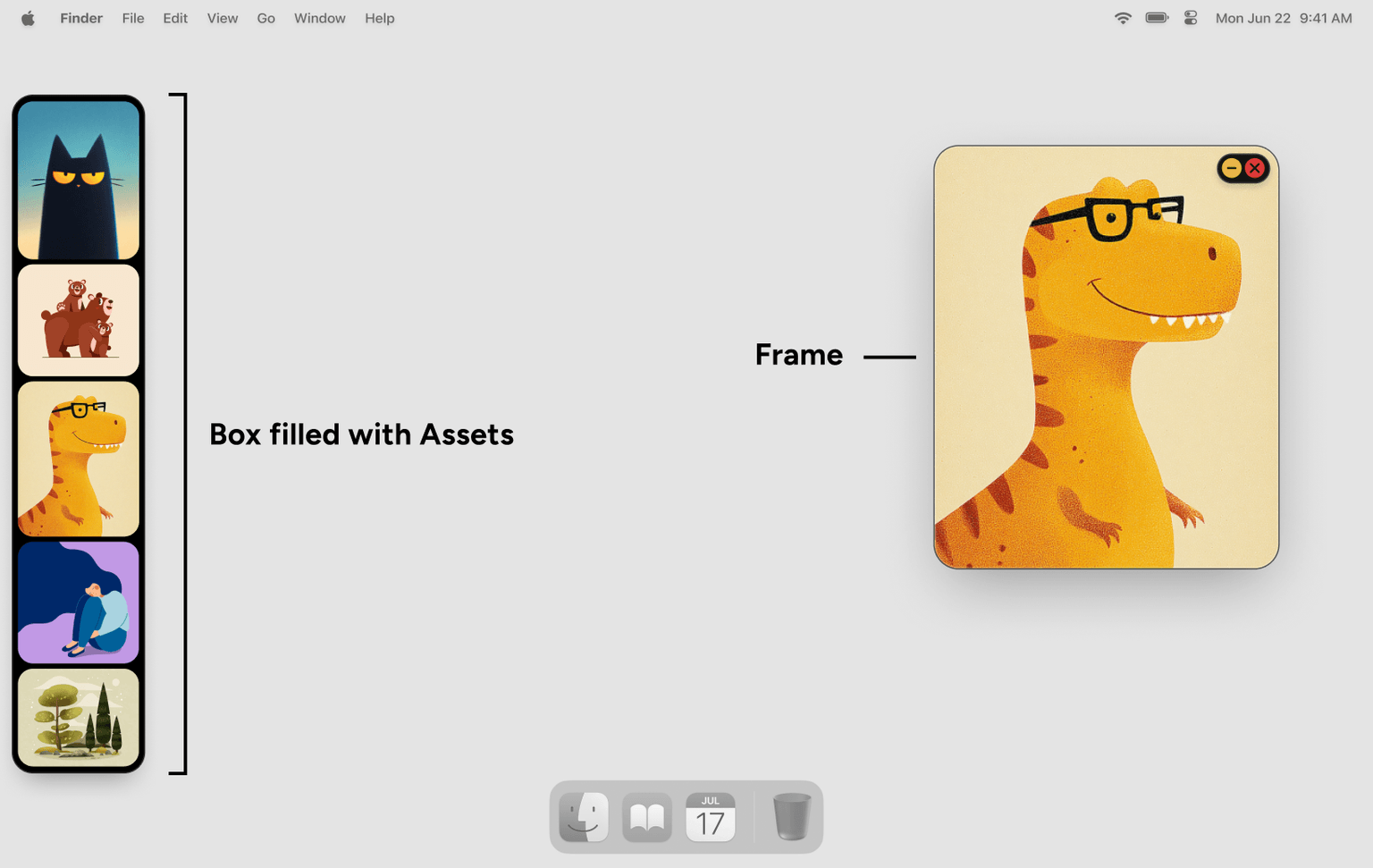
The best way to understand Refbox is to see how these concepts connect:
1. Boxes: Your Collections
A Box is a collection of Assets for a specific project or theme. You might have separate Boxes for:
- Character design references
- UI inspiration
- Landscape references
- Client project assets
Each Box appears as a sidebar that can sit on the left, top, or right side of your screen. Inside, you'll see thumbnail previews of all your Assets. The Top position uses a horizontal layout that you can scroll through.
Boxes can also contain Sections. Sections let you group Assets inside one Box, collapse sections you are not using, and move a whole section to another Box when your project grows.
2. Assets: Pieces of Content
Assets are the individual reference items stored inside a Box. Refbox supports images, videos, PDFs, 3D models, audio, text notes, sketches, and links.
3. Frames: Floating References
Frames are floating windows that display your Assets on the workspace. Think of them as movable, resizable canvases.
To create a Frame:
- Drag an Asset from the Box sidebar
- Drop it onto your workspace
Once a Frame is open, you can move, resize, zoom, pan, rotate, adjust opacity, and lock it in place.
You can open multiple Frames from the same Asset, which is perfect for comparing different crops or orientations.
Frame Types
While most Frames display a single Asset, Refbox also supports Group Frames — special Frames that display multiple Assets together in a single window with different layout modes.
4. Toolbar: Your Control Center
The Toolbar is your control center in Refbox. It provides quick access to create and switch Boxes, adjust settings, control Frame visibility, and access other workspace actions. You can customize what actions you have on your Toolbar in Settings > Toolbar.
Putting It All Together
Here's a typical workflow to see how everything connects:
Create a Box for your project
Use the Boxes Menu in the Toolbar to create a new Box. Name it something like "Character Design References."
Add Assets to your Box
Drag image files from your desktop into the Box sidebar, paste URLs and screenshots directly, or create a blank Sketch from the Toolbar.
Organize with Sections
Create Sections inside the Box for categories like poses, lighting, materials, or client feedback. Use Add Section in the Toolbar to name a Section and optionally choose existing Sidebar items to include.
Select a Section before adding new Assets from the Toolbar to place them there automatically.
Open Assets as Frames
Drag an Asset onto the workspace to create a Frame. Resize and position it where you want.
Create a Group Frame
Create a Group Frame in the Toolbar then drag multiple Assets from your Box into the Frame to view them all together in one window.
Work alongside your creative tools
Keep Refbox floating above Photoshop, Blender, or your code editor. Access references without switching apps.
Viewing Modes
Beyond the standard workspace, Refbox offers Gallery View — a full-screen mode for browsing and previewing all Assets in your current Box. Press the global shortcut ⌘ ⌥ A to open the Gallery View (Configurable in Settings > Controls).
Understanding File Storage
When you add files to Refbox, they're imported into the app's local database. Your original files remain untouched, and Refbox creates optimized copies for fast viewing.