

Your First Box
Let's explore Refbox and create your first custom Box. This hands-on guide will walk you through the essential actions using the included Tutorial Box.
Welcome to Refbox
When you first launch Refbox, start your free trial with your email address, or sign in if you have already purchased Refbox. Refbox opens your browser to complete the sign-in and updates the app when you're ready.
You'll then see a short welcome screen and a Tutorial Box already loaded. The Tutorial Box contains example Assets (images, videos, notes) designed to help you test out Refbox's features.
Explore the Tutorial Box
Before creating your own Box, take a moment to:
- Browse the example Assets in the sidebar
- Drag an Asset onto the workspace to create a Frame
- Try zooming, panning, and rotating a Frame
- Watch the instructional videos included in the Tutorial Box
Settings > Info > Learn > Create Tutorial Box.Step 1: Create Your First Custom Box
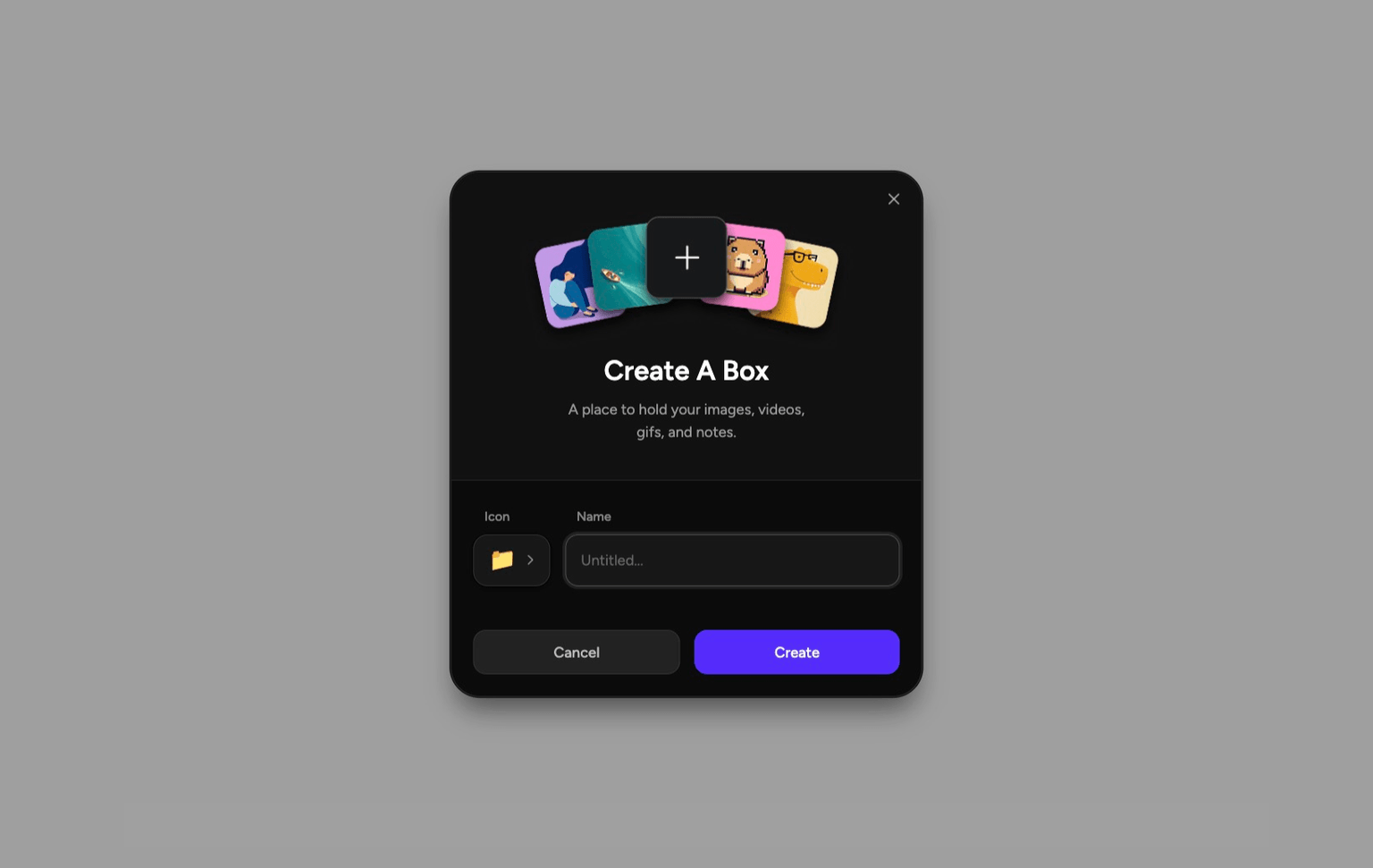
When you're ready to start organizing your own references, let's create a new Box.
Open the Boxes Menu
Click the Boxes icon in the Toolbar.
Click "Add Box"
In the dropdown menu, select Add Box. A modal dialog will appear.
Choose an Icon and Name
In the modal:
- Click the Icon button to choose a custom icon (or keep the default folder icon)
- Enter a Namefor your Box based on what you'll store in it:
- "Character References"
- "UI Inspiration"
- "Landscape Studies"
- "Project: Website Redesign"
- Click Create
Refbox will create your new Box and automatically switch to it. You'll now see an empty Box ready for your Assets.
Step 2: Add Your First Assets
Now let's add some reference materials. The quickest way is to drag and drop files from your desktop directly onto the Box sidebar. You can also use the Add File or Paste from Clipboard buttons in the Toolbar.
Step 3: Browse Your Assets
Once you've added some Assets, you'll see them as thumbnails in the Box sidebar. Here are some ways to interact with them:
Click Preview
Click any Asset to open it in a temporary Frame beside the Box. This lets you see a larger preview while keeping the Box visible. Click the X button on the Frame or press Delete backspace to dismiss it if you have it focused.
Zoom Preview
Hold ⌥ while hovering over an Asset to see a zoomed preview. Release to dismiss.
Scroll the Box
Use your mouse wheel or trackpad to scroll through your Assets in the Box.
Reorder Assets
Click and drag any Asset up or down in the Box to reorder your collection.
Organize with Sections
Create Sections when your Box starts to grow. Click Add Section in the Toolbar, name the Section, and optionally select existing Sidebar items to include before creating it.
You can rename, collapse, expand, reorder, as well as drag Assets between Sections.
Select a Section before using Toolbar actions like Add File, Paste from Clipboard, Add Note, or Add Sketch to add the new Asset there automatically.
Step 4: Create Your First Frame
Now let's open an Asset as a Frame on your workspace:
Drag an Asset Out
Click and drag an Asset from the Box sidebar out onto the empty workspace area.
Drop to Create Frame
Release the mouse button to create a Frame. The Asset opens in a floating window.
Position the Frame
Click and drag the Frame to move it anywhere on your screen.
Step 5: Interact with Your Frame
Now that you have a Frame open, try these basic interactions:
- Move: Click and drag the Frame body
- Resize: Drag edges or corners
- Reset: Double-click the Frame
For image and video Frames, you can also try:
- Zoom: Wheel Z Drag
- Pan: Space Drag Wheel Drag
- Rotate: R Drag
Step 6: Explore Gallery View
Press ⌘ ⌥ A to open Gallery View — a full-screen view of all your Assets. You can zoom, pan, and browse your entire collection.
Step 7: Customize Your Workspace
Before we wrap up, let's explore a few workspace customization options:
Move the Box sidebar
Choose Left, Top, or Right in Settings > Style > Box > Position. You can also enable Box Position in Settings > Toolbar for quick access to the same choices.
Hide the Box
Click the Hide Box button in the Toolbar to make the sidebar slide away when you're not using it. Reveal it by using the Reveal button along the edge of the screen. Check out the Auto Hide setting to automatically hide your Box when you don't need it.
Adjust Box Size
Drag the resize handle between the Box and the workspace to resize it. This changes the width at the left or right, and the height at the top.
What You've Learned
Congratulations! You now know how to:
- Create a new Box
- Add Assets using multiple methods
- Preview, reorder, and organize Assets in the Box
- Create Frames from Assets
- Move, resize, zoom, pan, and transform Frames
- Browse Assets in Gallery View
- Customize your workspace layout
Where to Go from Here
Now that you're familiar with the basics, you can explore more advanced features: