

Settings
Settings control how Refbox looks, behaves, stores data, and responds to input. This page follows the exact tab and section order used in the app.
Open Settings
- Click Settings in the Toolbar.
- Or press ⌘ , while Refbox has focus.
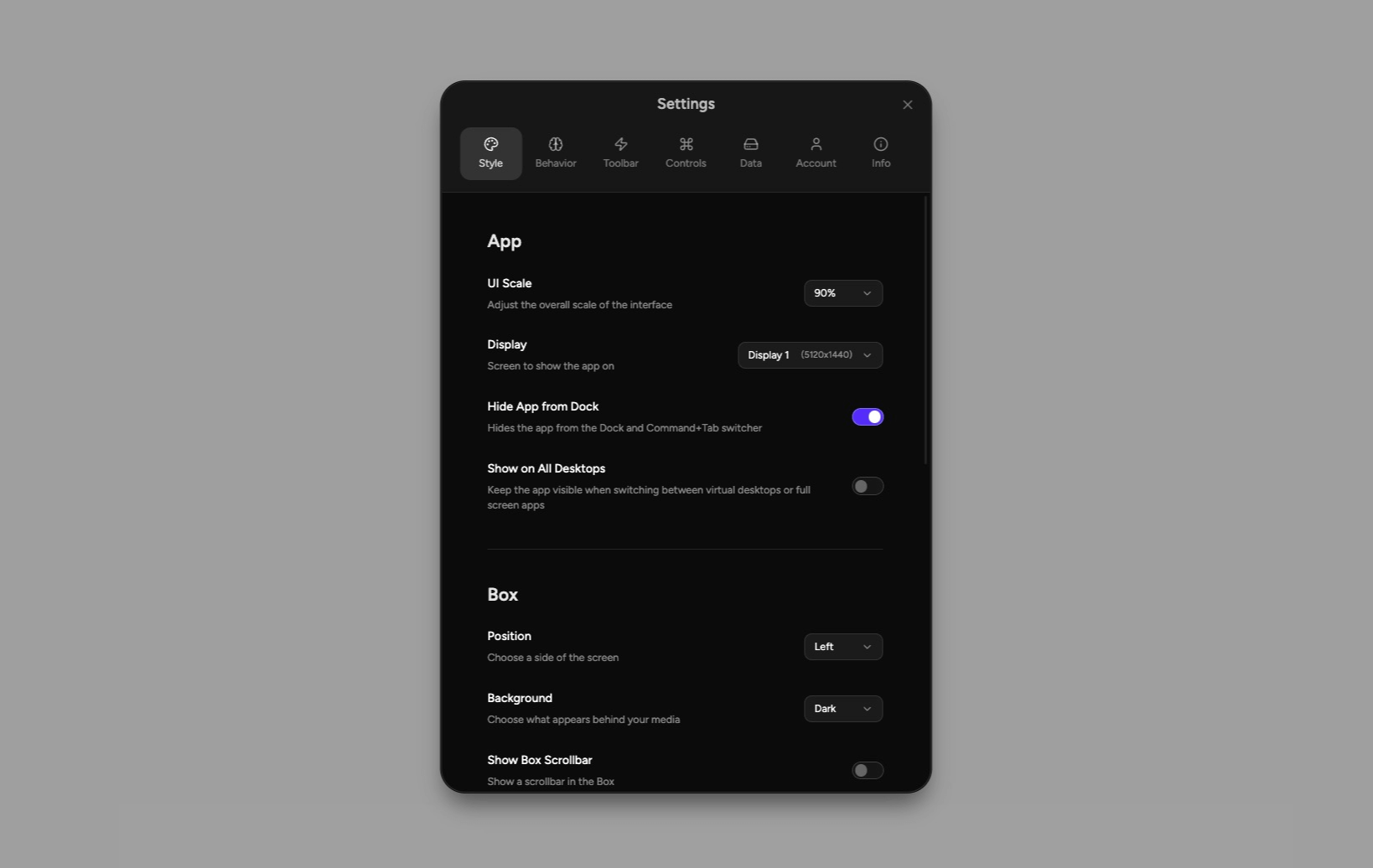
Style
App
Box
Previews
Assets
Frames
Masonry
Behavior
App
- All Apps: Refbox stays visible while you use any app.
- Only Selected Apps: Refbox only shows while a saved app is in the foreground.
- All Apps Except Selected: Refbox hides while a saved app is in the foreground.
Clicking Refbox reveals its hidden parts. Global Show/Hide still controls the complete app.
Box
Frames
Assets
Colors
Toolbar
The Toolbar tab says Choose what actions appear in your Toolbar and shows a live preview. Toggle actions in this exact order:
- Hide Box
- Add File
- Paste From Clipboard
- Add Note
- Add Sketch
- Add Palette
- Add Section
- Add Group
- Color Picker
- Close Frames
- Export Box
- Box Position
- Auto Hide Box
- Keep Toolbar Open
- View Mode
- Gallery View
Settings and the Boxes Menu remain in the Toolbar. An unlock action also appears automatically when one or more Frames are locked.
Controls
Global Shortcuts
Global shortcuts trigger even when Refbox does not have focus. They can override the same shortcut in another app. Each shortcut can be enabled, disabled, or changed.
They appear in this order:
- Show/Hide App — ⌘ ⌥ S
- Show/Hide Gallery — ⌘ ⌥ A
- Color Picker — ⌘ ⌥ I
- Paste From Clipboard — ⌘ Shift ⌥ V and disabled by default
Trackpad
Mouse
0.1x to 5x in 0.1x steps.Zoom/Scroll
Choose Zoom or Scroll for each context in this order:
- Frames
- Groups
- Gallery
Holding Cmd on macOS or Ctrl on Windows temporarily performs the opposite action.
Frames
Box Shortcuts
The Settings panel shows these fixed Box controls:
- Quick Magnify — Alt/Option
- Native File Drag — Shift + drag
- Drag Scroll — Cmd/Ctrl + drag
Choose See All Shortcuts to open the complete Shortcuts reference.
Data
Import & Export
.refbox file for transfer or backup..refbox file before importing it.Access Control
refbox command-line tool read and change your Boxes. Enabling it installs the command on your PATH. Restart terminals that were already open, then run refbox status.If Refbox detects a missing, stale, or off-PATH command, this section shows a repair message and Try again. If another file already uses the installation path, remove that conflict before you retry.
See Command Line Access, the CLI Reference, and MCP Setup for complete instructions.
Trash
Restored Boxes return at the end of the Box list. A restored Asset returns to its Box but does not restore deleted Frames or Group membership. If its old Section no longer exists, it returns outside all Sections.
Account
The Account tab shows the signed-in license and device.
Trial License
Trial users see the remaining days, expiration date, Purchase License, and Sign in again actions. Sign in again opens the browser and checks the same email for a paid license. An optional Enter a license key instead field remains available for older purchases.
Identity
The identity panel shows:
- License Key, hidden by default with reveal and copy controls
- This device
Account Actions
- Sign out of this device returns Refbox to the sign-in screen and frees the device slot after confirmation.
- Manage Online opens the Refbox account page.
Info
Learn
Get In Touch
hello@ref.box for support or to report a bug.