

Assets
Assets are the media, files, Notes, Sketches, and Palettes stored inside a Box. You can view them in the Box, in Gallery View, or open them as Frames on your workspace.
Supported Asset Types
Image
Video
Text Note
Sketch
Palette
Link
3D Model
Audio
Supported File Formats
Standard: png, jpg, jpeg, gif, webp, avif, bmp, svg, tiff, tif, heic, heif
RAW: cr2, nef, arw, dng, rw2, pef, orf, raf, x3f, srw
Standard 3D: obj, stl, gltf, glb, fbx
CAD: step, stp, iges, igs, brep
Documents: pdf
Text Notes: txt, md
.txt and .md files are imported as note Assets.
Adding Assets
Refbox offers multiple ways to add Assets to your Boxes, giving you flexibility based on your workflow.
Add File Button
Use the Toolbar button to browse your computer:
- Click the Add File button in the Toolbar
- Select one or more files
- Click Open to import them into the current Box
If a Section is selected in the Box, imported files from are added to that Section automatically.
.txt and .md files to create note Assets from existing text files.Paste from Clipboard
Perfect for screenshots and copied content:
- Copy an image, file, text, or URL to your clipboard
- Use one of these methods:
- Click the Paste from Clipboard button in the Toolbar
- Focus Refbox and use ⌘ v . This does not run while a text input has focus.
- Enable the global Paste From Clipboard shortcut in
Settings > Controlsto paste while another app has focus.
Settings > Behavior > Assets.When Paste as Palette is on, clipboard text made entirely of supported HEX, RGB(A), or HSL(A) values becomes one Palette instead of a Note. Values can be separated by commas or new lines. Hold Shift while you click the Toolbar's Paste From Clipboard action to force a plain Note for one paste. Configure the default in Settings > Behavior > Colors.
If a Section is selected in the Box, pasted Assets are added to that Section automatically.
Drag and Drop
The quickest method for adding files:
- Drag files from your file manager or your browser
- Drop them directly onto the Box sidebar or onto a specific Section
- Files are instantly imported
Certain image and video files are converted to more compressed formats upon import. Resolution may also be downscaled for efficiency.
The Behavior > Assets > Drop Location setting controls whether dropped Assets are inserted at the mouse position or added to the bottom of the Box or Section.
Add Notes
Create a text-based Asset:
- Click the Add Note button in the Toolbar
- Enter your note text
- The note is saved to your current Box
If a Section is selected in the Box, the note is saved there.
Add Sketches
Create a blank drawing Asset:
- Click the Add Sketch button in the Toolbar
- Refbox creates a new Sketch Asset
- The Sketch opens immediately in a Frame so you can start drawing
If a Section is selected in the Box, the Sketch is saved there.
Add Palettes
Create a color collection inside Refbox:
- Click Add Palette in the Toolbar.
- Refbox creates an empty Palette and opens it in a Frame.
- Click Add a color, use the screen picker, or paste color values into the Frame.
If a Section is selected, the Palette is saved there. You can also create a filled Palette by pasting one or more color values with Paste From Clipboard.
See Palette Frames for color formats, alpha, editing, copying, and reordering.
Add URLs
To add web references, copy a URL and use the Paste from Clipboard method above.
A Link shows the website's own preview image when the page offers one, with the URL across the bottom and a link icon in the corner. A site without a preview image shows its icon above the URL instead. Turn preview images off under Settings > Behavior > Assets > Link Preview Images; the change applies to new Links and leaves existing ones as they are.
Interacting with Assets In A Box
Refbox provides multiple ways to interact with Assets in the Box sidebar. Most actions support various input methods for mouse, trackpad, and tablet users.
Select Multiple Assets
Bulk selection lets you run one action on several Assets in the current Box.
Start a selection
- Hover over a large enough Asset and click the circular control in its top-left corner.
- Or right-click any Asset and choose Select.
The Toolbar is replaced by a bulk-action menu, and the Box stays open while selection is active.
Change the selection
- Click an Asset to select or deselect only that Asset.
- Shift-click an Asset to add the range from the last clicked Asset. The range follows saved Box order and can cross expanded Section boundaries.
- Click Cancel in the bulk-action menu to clear the selection.
If you deselect the last Asset or press the Escape key, bulk selection ends.
You can expand or collapse Sections while selecting. Collapsing a Section keeps its selected Assets in the selection and in the selected count. Shift-click does not add other hidden Assets from a collapsed Section.
Bulk actions
The menu shows the selected count and these available actions in this order:
Settings > Data > Trash.While bulk selection is active, Refbox disables Asset previews, Asset and Section reordering, context menus, native file drag, and external file or URL drops. Existing Frames may be hidden during selection but will return when you cancel, unless an action moved or deleted their Assets.
Preview Assets
Click Preview
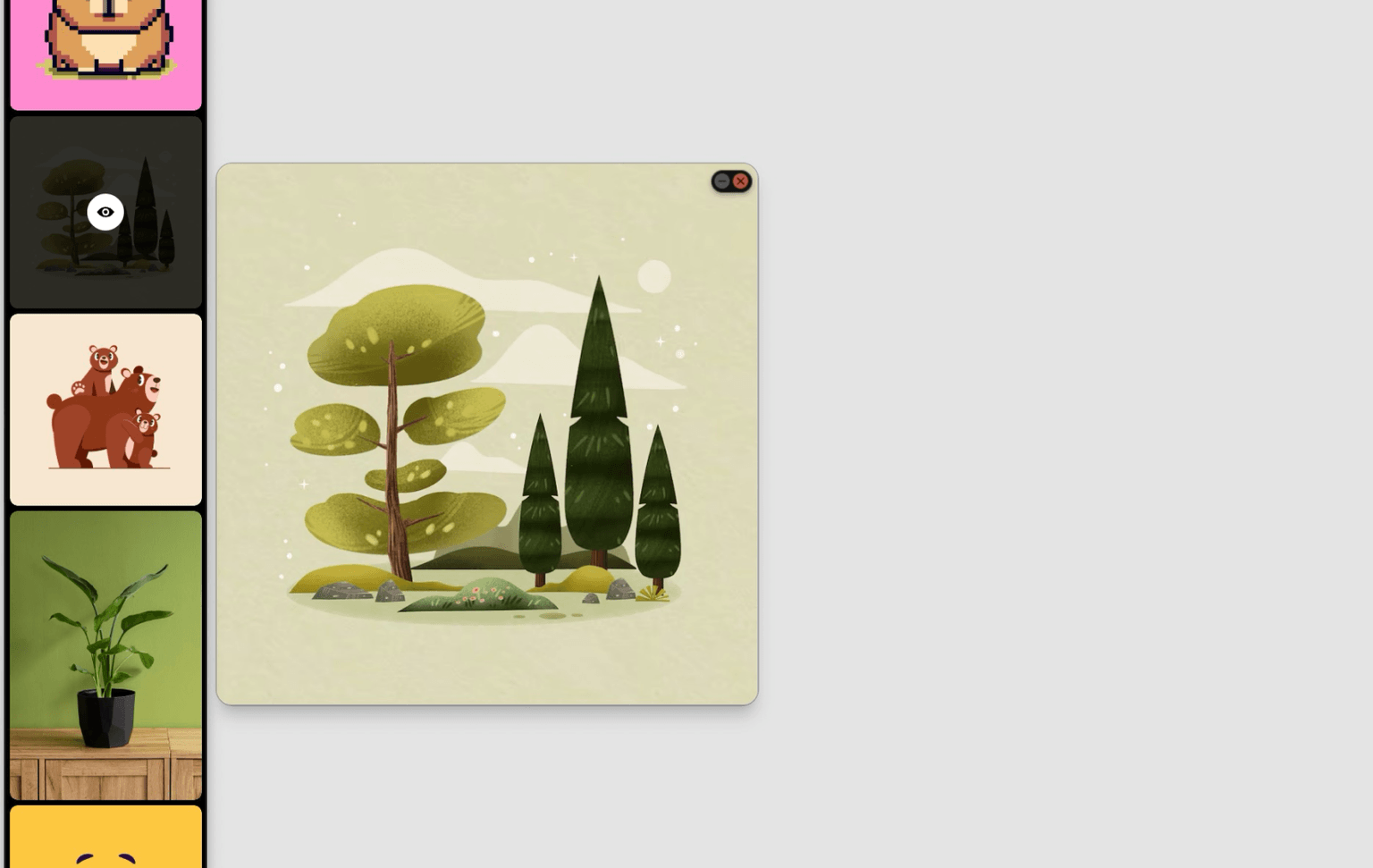
Click any Asset to open it in a temporary Frame beside the Box. The Asset displays an "eye" icon while being previewed.
As a Frame, you have access to all Frame functionality like zooming, panning, and rotating (depending on the Asset type).
Dismiss the preview:
- Click the X button on the Frame
- Press Delete backspace while the Frame is focused
Make it permanent:
Drag the Frame away from the Box. After a certain distance, a pulse animation plays to indicate the Frame is now permanent and the "eye" icon is removed from the Asset.
Zoom Preview
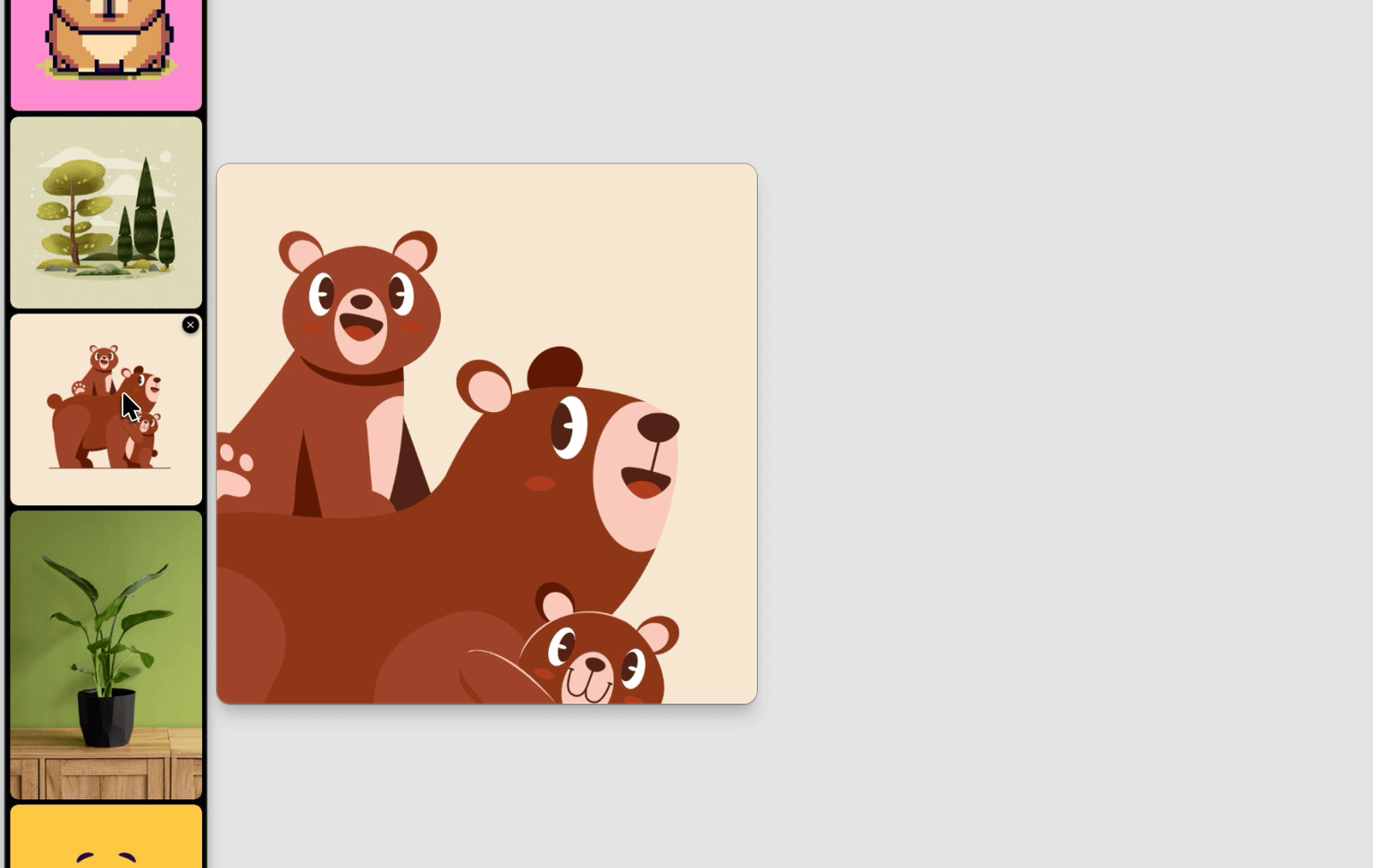
Hold ⌥ while hovering over an Asset for a quick zoomed preview. Release to dismiss.
Reorder Assets
Click and drag any Asset within the Box to reorder your collection. Your custom order is preserved automatically.
Sections and Uncategorized
If your Box uses Sections, drag Assets between Sections to move them. Assets outside any Section appear under an Uncategorized divider. The divider is only visible when it contains Assets, or while you are dragging so you can move an Asset out of a Section.
Native File Drop
Export Assets from Refbox to your operating system:
- Hold Shift
- Drag an Asset from the Box
- Drop it into a folder, application, or desktop
Creating Frames from Assets
To view an Asset in detail on your workspace, create a Frame:
- Click and drag an Asset from the Box sidebar
- Drop it onto the workspace area
- A Frame opens displaying the Asset
You can create multiple Frames from the same Asset to view it at different zoom levels or transformations.
Asset Context Menu
Right-click any Asset (in the Box or Gallery view) to access context-specific actions. Available options vary depending on the asset type.
Common Actions
Settings > Data > Trash.Type-Specific Actions
Asset Info
Use Get Info from an Asset's context menu to inspect where it came from and see type-specific metadata.
Image Editor
For image and animated-image Assets, right-click and select Edit Image. The Image Editor lets you draw or place text annotations, crop, choose smooth or pixelated rendering, set a transparency background, open the original source, and view Asset Info.
Annotations remain editable and separate from the original file. When you need a flattened result, use Copy Annotated or Save Annotated from an Asset or Frame context menu. The ordinary Copy Image and Save As actions leave annotations out.
Asset Import Quality
When importing large media files, Refbox offers quality options to balance file size and visual fidelity (currently limited to images only):
Configure the default import quality in Settings > Behavior > Assets.