

Gallery View
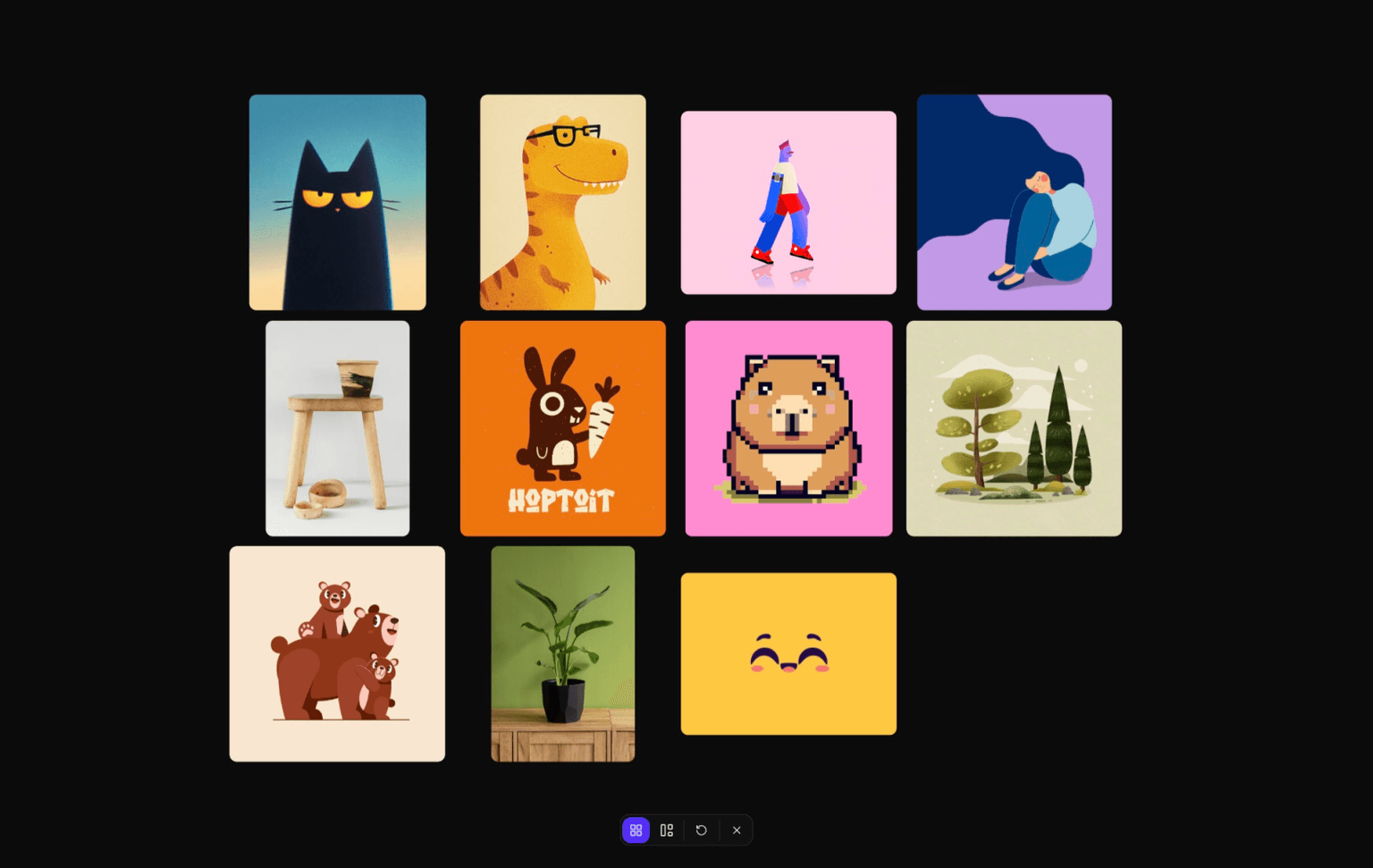
Gallery View is a full-screen view of your current Box that displays all Assets in a browsable grid. It's perfect for getting an overview of your collection, finding specific Assets, and reorganizing your references.
Opening and Closing Gallery
Open Gallery View
Close Gallery View
Gallery Modes
Gallery View offers two layout modes for different browsing needs:
Grid View
Structured rows and columns with consistent spacing. Assets are arranged in an even grid, making it easy to scan through your collection systematically.
Masonry View
Staggered columns that maximize space efficiency. Assets flow naturally based on their aspect ratios, creating a Pinterest-style layout.
Switch between modes using the Gallery controls or the context menu.
Navigation and Controls
Gallery View supports multiple ways to navigate through your Assets:
Zoom
Pan
Reset View
Reordering Assets
Rearrange your Assets directly in Gallery View:
- Hold Shift
- Drag an Asset to a new position
- Release to drop it in place
Your new order is saved automatically and reflected in the Box sidebar.
Asset Interactions
Context Menu
Right-click any Asset in Gallery View to access the same context menu options available in the Box sidebar:
- Edit Image (images and animated images)
- Create Palette (images and GIFs)
- Copy Image or Copy Annotated
- Copy one color or Copy all (Palettes)
- Save As or Save Annotated
- Move to Box
- Get Info
- Delete (moves the Asset to the Trash)
Annotated actions appear only after the Asset has annotations. The ordinary copy and save actions use the original image; annotated actions flatten the visible annotations into the output.
Related Settings
Customize Gallery View behavior in Settings:
- Gallery scroll behavior: Choose whether the wheel zooms or scrolls by default
- Hold modifier key: Temporarily switch between zoom and scroll
Configure these in Settings > Controls > Zoom/Scroll.
With Settings > Controls > Trackpad > Trackpad Mode on, you can also pinch to zoom in the Gallery, and drag two fingers to pan on macOS.