

Boxes
Boxes are containers for your Assets. Each Box holds images, videos, GIFs, PDFs, 3D models, audio, links, notes, sketches, and color palettes. Think of them as project folders that keep your reference materials organized and separated by context.
Creating and Managing Boxes
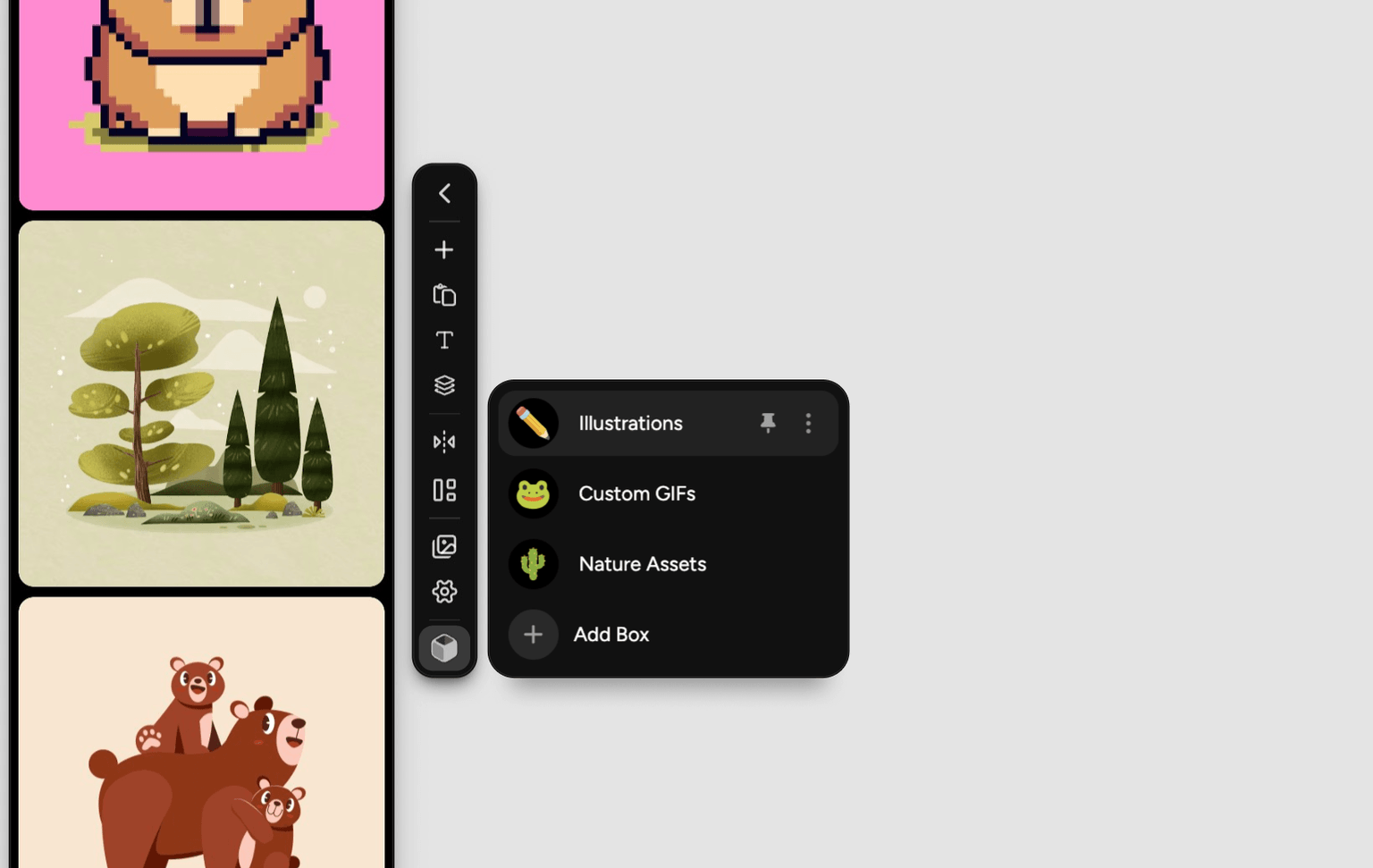
Create a Box
Open the Boxes Menu
Click the Boxes icon in the Toolbar.
Select Add Box
Choose Add Box from the dropdown menu.
Customize Your Box
- Click the Icon button to choose a custom icon
- Enter a descriptive Name for your Box
- Click Create
Switch Between Boxes
You can have multiple Boxes, but only one is active at a time. To switch Boxes:
- Open the Boxes menu in the Toolbar
- Select the Box you want to switch to
Reorder Boxes
To rearrange the order of your Boxes in the Boxes Menu:
- Open the Boxes menu in the Toolbar
- Click and drag a Box to a new position in the list
- Release to drop it in place
Your custom Box order is preserved automatically.
Edit a Box
To rename a Box or change its icon:
- Open the Boxes menu
- Find your Box in the list
- Click the edit icon next to the Box name
- Update the icon or name as needed
Delete a Box
Settings > Data > Trash.- Open the Boxes menu
- Click the edit icon for the Box you want to delete
- Click Delete Box
- Confirm the deletion
Emptying the Trash permanently removes its Boxes, Assets, and files and cannot be undone.
Box Interactions
Refbox offers multiple ways to interact with Boxes, giving you flexibility to use whichever input method feels most comfortable. Most actions support both mouse and keyboard alternatives for trackpads and tablets.
Sections
Sections organize Assets inside a Box without requiring you to split the Box into separate collections. Use them for themes, Asset types, or any grouping that makes sense for you.
You can rename, collapse, expand, reorder, and delete Sections from the Section context menu (right-click). Collapsing a Section hides its Assets while keeping them in the Box.
Create a Section
Use the Add Section button in the Toolbar to create a Section:
- Click Add Section in the Toolbar
- Enter a Section name
- Optionally click existing items in your Box sidebar to include them in the new Section
- Click Create
Adding Assets to Sections
Select a Section before using Toolbar creation actions like Add File, Paste From Clipboard, Add Note, Add Sketch, or Add Palette. New Assets are added to the selected Section automatically.
You can also drag files directly from your operating system and drop them onto a target Section in the Box.
Moving Assets Between Sections
Drag Assets between Sections to reorganize them. Drop an Asset on the Section where you want it to live, or drag it within a Section to change its order.
Section Actions
The Section context menu includes the following actions:
Scrolling and Navigation
Reordering Assets
Click and drag any Asset within the Box to reorder your collection. You can reorder Assets in both Standard and Masonry modes, and you can move Assets between Sections by dragging them to a different Section.
Your custom order and Section assignments are preserved automatically.
Native File Drop
You can drag Assets from Refbox to your operating system:
- Hold Shift
- Drag an Asset from the Box
- Drop it into a folder, application, or desktop
See the Native File Drop section on the Assets page for important details about how this works.
Asset Actions
Right-click any Asset in the Box to access quick actions like delete, copy, save, and move to another Box. See the Assets page for the full list of context menu options.
Exporting and Importing Boxes
Export Boxes
To back up or share Boxes:
- Open the Boxes menu
- Click the edit icon for the Box you want to export
- Click Export Box
- This opens the Export Boxes modal with the selected Box checked. From here you can select any other Boxes to be exported as well.
- Click Export and choose a save location
This creates a .refbox file containing the Box and all its Assets.
Settings > Toolbar to save the current Box directly. Exported Boxes preserve Sections and Section item assignments.Import Boxes
You can import Boxes from a .refbox file using any of these methods:
- Drag and drop the
.refboxfile directly into your current Box - Click the "+" icon in the Toolbar and select the
.refboxfile - Open Settings, navigate to the Data tab, and click Import
Any of these methods will open the Import Box modal, which displays information about what you're importing. If any Box names overlap with your existing Boxes, you'll be given the option to:
- Override: Replace the existing Boxes that have conflicts
- Treat as Copy: Import the new Boxes alongside your existing ones
Box Display Settings
Refbox offers several settings to customize how Boxes appear and behave in your workspace.
Sidebar Position
Choose where the Box appears on your screen: Left, Top, or Right.
- Box Position button: Enable it in
Settings > Toolbar, then choose Left, Top, or Right from its menu - Settings dropdown:
Settings > Style > Box > Position
When the Box is at the top of the screen, Assets use a horizontal masonry layout that you can scroll through. Sections, previews, reveal behavior, and the usual Box actions work there too. Section labels rotate to make the most of the available space.
Auto Hide Behavior
Enable Auto Hide to make the Box sidebar slide away when not in use. The sidebar reveals when you:
- Hover over the edge of the screen
- Click a movable "Reveal" button along the edge of the screen
Configure the reveal method in Settings to match your preferences.
Keep Toolbar Open
Enable Keep Toolbar Open if you frequently add Assets or switch between Boxes. This keeps the Toolbar visible at all times instead of only appearing on hover.
Box Width
You can resize the Box by dragging the resize handle between it and the rest of the workspace. At the left or right, this changes its width; at the top, it changes its height.
In Settings, you can control how width is remembered:
- Per-Box Width: Each Box remembers its own custom width
- Global Width: All Boxes share the same width when you switch between them
App Visibility
Refbox floats above your other apps by default. In Settings > Behavior > App, Visibility controls where it does that:
- All Apps: Refbox stays visible no matter which app you are using
- Only Selected Apps: Refbox is visible only while one of your saved apps is in the foreground
- All Apps Except Selected: Refbox hides while one of your saved apps is in the foreground
For either of the selected-app modes, add the apps you want under Your Apps by picking from the apps you currently have open, then use Select What's Hidden to choose whether the rule hides your Frames, the Box, or both. Refbox remembers your selection.
Visual Customization
View Modes
The Toolbar's View Mode menu controls the number and size of masonry lanes.
For a Box on the left or right:
- Auto Columns creates as many columns as fit.
Settings > Style > Masonry > Auto Column Widthsets their maximum width. - Full Width uses one column across the complete Box width.
- 2 Columns, 3 Columns, and 4 Columns use a fixed column count.
For a Box at the top, the equivalent options are Auto Rows, Full Height, 2 Rows, 3 Rows, and 4 Rows.
All View Modes support manual reordering and moving Assets between Sections.