

Group Frames
Group Frames display multiple Assets together in a single Frame. They're perfect for organizing related references, comparing multiple images, or focusing on a subset of your full reference collection.
Creating Group Frames
To create a Group Frame:
- Click the Add Group button in the Toolbar — this creates an empty Group Frame in the center of your workspace
- Drag Assets from your Box into the Group Frame to populate it
You can also right-click a Section and select Create Group. Refbox creates a Group Frame already populated with every compatible Asset in that Section.
A bulk selection offers the same thing: select several Assets in the Box, then choose New Group from the bulk-action menu.
Layout Modes
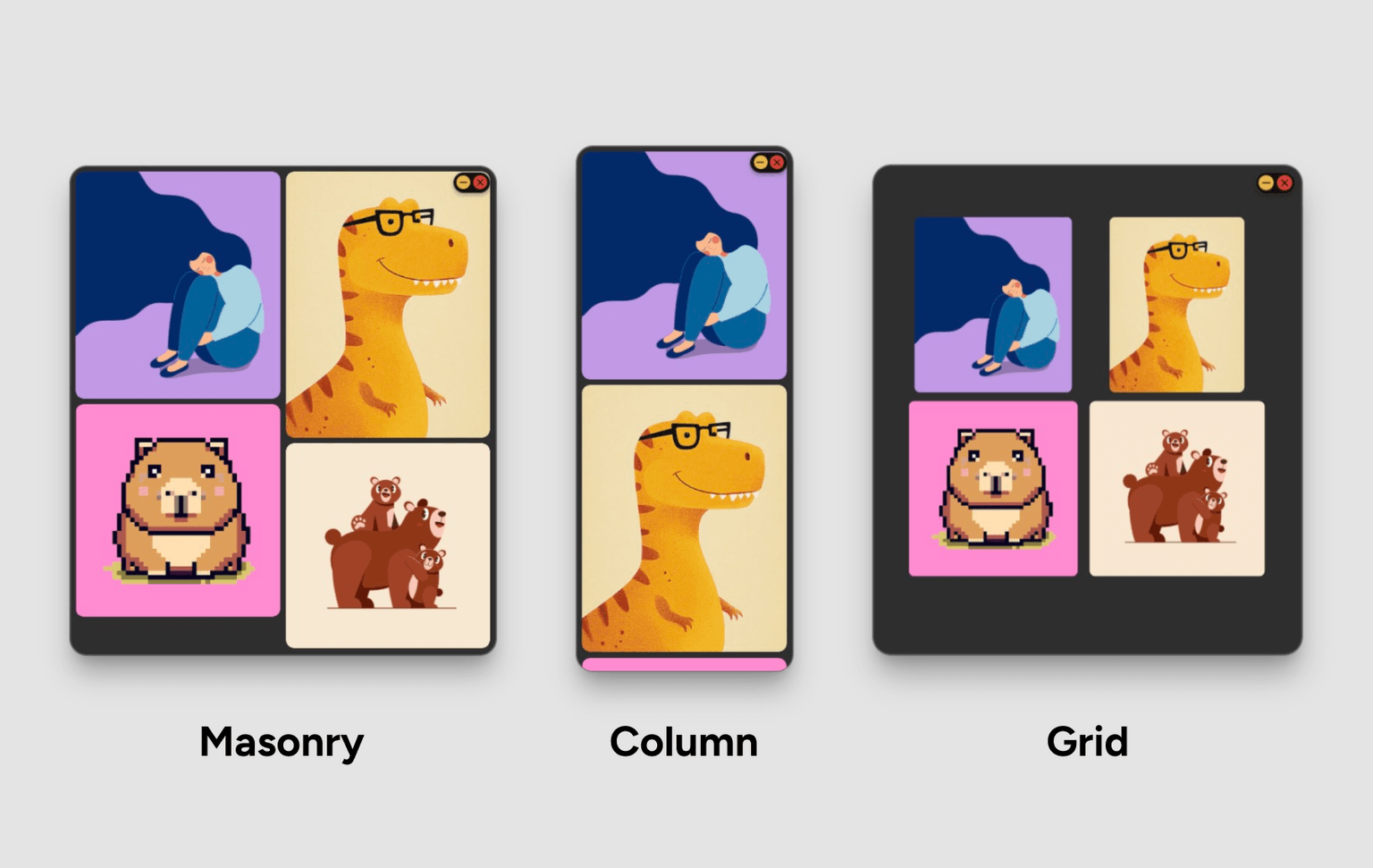
Group Frames support three layout modes, each optimized for different use cases:
Grid Layout
Arranges Assets in an evenly-spaced grid with consistent sizing. This mode gives you the most freedom when navigating.
Grid Layout works like a free canvas — you can zoom and pan around the automatically arranged grid to explore your Assets. This is the same behavior as Gallery View's Grid Mode.
Column Layout
Stacks Assets vertically in a single column, exactly like the Box's standard layout. Perfect for focusing on 1 or 2 references at once.
Masonry Layout
Creates a Pinterest-style layout that maximizes space efficiency. Assets flow naturally based on their aspect ratios.
Reordering Assets
Rearrange Assets within a Group Frame:
- Hold Shift
- Drag an Asset to a new position
- Release to drop it in place
Reordering is available in all layouts.
Group Background
Customize the background of Group Frames in Settings > Style > Frames > Group Background:
- None: Transparent background
- Ghost: Subtle semi-transparent background
- Dark: Solid dark background
The background helps visually separate the Group from other content on your workspace.
Context Menu Actions
Right-click an empty area of a Group Frame to access:
Individual Asset Actions
Right-click individual Assets within a Group Frame to:
- Create a separate Frame from that Asset
- Access Asset-specific options
- Remove the Asset from Group
Settings
Configure Group behavior in Settings:
- Default Layout Mode (
Settings > Behavior > Frames): Choose Grid, Column, or Masonry as the default layout - Default Background (
Settings > Style > Frames): Set the default background style